Game Maker has a large number of features but there is always a need for more. Since version 7.0 it is possible to add extension packages to Game Maker. Extension packages extend the functionality of the GML language by adding additional action libraries, functions and/or constants. They can be created relatively easy by people that have a bit of programming experience. Many of them will be made available through the website http://www.yoyogames.com/extensions.
To create extension packages you will need the Extension Maker. In this program you indicated the files in the extension package and the functions and constants that are defined in it. This help file described how to use the Extension Maker. Please read this carefully as creating extensions is not trivial and the program is not completely user-friendly. Also, please realize that this product is not supported and only provided for your convenience.
Note that there is an important difference between an extension package description file (which will have the extension .ged) and an actual extension package file (with extension .gex). Description files are used for by the Extension Maker to describe the extension package. The extension package itself is build by the Extension Maker and can then be distributed. It includes all files. In Game Maker the user can install such packages.
Please test your functions and scripts and package description very carefully before creating the package. Game Maker will not carefully check the extension packages and errors in extension packages can lead to abnormal behavior and crashed.
An extension package consists of some global information and a number of different files. There can be four different kinds of files in an extension package:
Action libraries An action library adds a collection of actions to Game Maker. These are then available in the object and timeline forms. Action libraries are created with a special program. See the extension pacakge website for more information.
DLL files An extension package can add a collection of functions that come from a Dynamic Link Library (DLL) file. In a DLL file you define functions that can be programmed in any programming language that supports the creation of DLL's (e.g. Delphi, C, C++, etc.) You will though need to have some programming skill to do this.
GML files An extension package can also add functions that are in the GML language of Game Maker itself. Although these are slower than DLL functions, you have access to all aspects of Game Maker. To create a GML file, simply define the functions as scripts in Game Maker and then export them using the Export All Scripts item in the Scripts menu.
Other files These are simply any other type of files. These are simply included in the packages and exported to the temp folder (see below) when the game is running Here you can add images, text files, etc. that your extension package needs.
Use the Extension Maker you specify all the information in the package. Once it is ready, you choose Build Package from the File menu. This creates a .gex file A user of Game Maker should download this file. Next he should go the the Resources menu, select Select Extension Packages, click on the Install button and select the .gex file. After that the user can select the package to be used in the game. The actions and functions defined in these packages are then available in the program (also shown in the function lists) and all required files will be incorporated in the game executable to make them available at runtime. Just one click is all that the user has to do. Note that extension packages cannot be used in secure mode and that they require the Pro Edition of Game Maker.
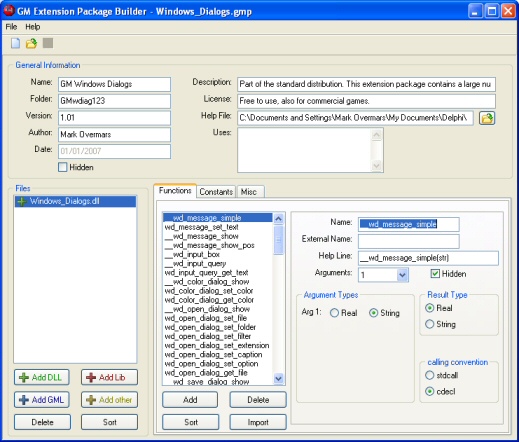
When starting the Extension Maker the following form is shown (we already loaded a package description in this example):
The form is built up of three parts. At the top there is the global information about the extension package. At the left there is the list of files to be included in the package. And once a file has been added and is selected, at the right the information about the functions, constants, and other settings can be filled in.
At the top of the form you can fill in the global information about the extension package. Here you must provide the following information:
Name The name of the extension package under which it will be known in Game Maker. Please make sure this name consists only of letters, digits, and spaces, as it will also be used as file name for the package when it is installed in Game Maker.
Folder This is the name of the folder in which the files for the extension package are installed when the game is running. It will be a subfolder of the temporary folder for the game. (Note that in GML code this temporary folder can always be located using the variable temp_directory).
Version The version of your package. This will be shown when selecting an extension package in Game Maker. You can fill in here anything you like.
Author The author of your package, that is you. This will be shown when selecting an extension package in Game Maker.
Date The date the package was last changed. This will be filled in automatically.
Hidden When checked the package will not be shown in the list of possible extension packages in Game Maker. This is only useful when the package is used by another package (see below).
Description A short description of the extension package. This will be shown when selecting an extension package in Game Maker.
License Some brief license information about the package. This will be shown when selecting an extension package in Game Maker. Indicate here whether the package can be used for free and whether this is also the case for commercial games. If more license information is required, put this in the help file.
Help File Every extension package should have a help file. The best way to create these is to use one of the many help creation programs that are available (also for free). These normally produce either a .hlp file (old help files) or a .chm file (modern help files). But it is also possible to create a .doc, .pdf, or .html file. Make sure though it is just a single file. Indicate the file here by clicking on the button to the right of it. The help file will automatically be integrated in the Help menu of Game Maker.
Uses An extension package might use functions from another package. In this case you should indicate these packages in the uses list. Indicate the name of the package, not the file name! Note that it is the responsibility of the user to make sure these used packages are installed in Game Maker. So unless these are very common packages you better not use this feature (it is often easier to include the required additional files in the package itself. Also clearly indicate in the description that these packages are required.
At the left of the form there is the list of files that will be included in the package. (Note that the actual inclusion only takes place when the package is built. They are not saved in the package description file.) Use the buttons at the bottom to add files of the differen types. There is also a button to delete a file from the list (be careful, all relate information about functions and constants is deleted as well). Finally you can sort the files by type and file name. Note that you can also add files by dragging them onto the form. The extension will determine the type.
Once a file is selected in the list, on the right you can fill in information about the file. When adding a DLL or GML file you can provide information about functions and constants. For all files you can provide some Misc information. In the following sections information is provided.
For DLL and GML based files there is a Functions tab. Here you must provide information about the functions in the package. In the list you can add or delete function descriptions. (You can also sort them or import them; see below.) For each function the following information must be provided:
Name The name of the function as it must be used in Game Maker.
External Name The name of the function as it is defined in the file. If this is the same as the name then leave this field empty.
Help Line The help line that is shown for this function in the script or code editor. Typically this consists of the name of the function and the arguments between brackets.
Hidden When checked, the function is not shown in Game Maker. This is useful when the function is used by scripts in the file or in other files that are included in this package.
Arguments The number of arguments. For GML scripts you can also indicate arbitrary here in which case the number of arguments is not checked.
When the file is DLL based you also need to provide some additional information:
Argument Types When there are 4 or less arguments you must specify the type for each of them (real or string). When there are more than 4 arguments they must always all be of type real, so nothing needs to be specified.
Result Type Here you must specify the result type of the function. The result type must be a real or a string. No other result types are supported!
Calling Convention Finally you must specify the calling convention for the DLL function. This can either be stdcall or cdecl. You should specify this when creating the DLL file.
Rather than filling in the fields for each of the functions, you can also import the descriptions from a text file. Here for each function there should be a line. The line starts with the work function or hfunction to indicate that this is a function or a hidden function. Next follows the name of the function followed, in round brackets by the names of the arguments, and their type. It can also contain a return type. As argument types only real or string can be used. The precise syntax is as follows: you first have the name of the function followed by the opening bracket. Next there are the 0 or more arguments separated by a semicolon (;) each argument consists of a pair name:type where type either is real or string. Next there is the closing bracket. Finally there optional is a part :type that indicated the return type. There can also be lines starting with kind, followed by either dll-stdcall or dll-cdecl to indicate the kind of the following functions. Here is an example of a functions import file:
kind dll-stdcall
function game_pause()
kind dll-cdecl
function three_multiply(val1:real;val2:real;val3:real):real
hfunction duplicate(str:string;n:real):string
All information about name, helpline, and argument is now automatically filled in.
For DLL and GML based files there is also a Constants tab. Here you can add constants to the package. In the list you can add or delete constant descriptions. (You can also sort them or import them; see below.) For each constant the following information must be provided:
Name The name of the constant as it must be used in Game Maker.
Value The value of the constant. This should be a constant expression. That is, it is either a constant number or a string (with quotes around it) or it is an expression. The expression is evaluated before anything else happens in the game. So it for example cannot reference the current room, instances, or scripts. But it can contain the built-in constants and functions.
Hidden When checked, the constant is not shown in Game Maker. This is useful when the constant is used by scripts in the file or in other files that are included in this package.
Rather than filling in the fields for each of the functions, you can also import the descriptions from a text file. Here for each constant there should be a line. The line starts with the work const or hconst to indicate that this is a constant or a hidden constant. (Other lines in the file are ignored.) Next follows the name of the constant followed by the = sign, followed by the value. Here is an example of a constants import file:
const msg = 'Hello World'
const large = 10000
const c_orange = make_color_rgb(255,192,64)
For each included file in the package there is a Misc tab. Here you can set some additional information. For all files you can change the file name (under which it will be saved) here and you can change the location of the file. Also the kind of the file is show.
For DLL and GML files you can also indicate two special functions here:
Initialization Here you can fill in the name of a function that must be called before the execution of the game starts. In this function you can for example initialize variables create certain objects and instances or load some images. Note that no graphics window is available at this moment. The function should have no arguments and have no return value. Make sure the function is also defined in the function list (probably hidden). Finalization Here you can fill in the name of a function that must be called at the end of the game. Here you typically clean up certain stuff or write some information you want to save to a special file or to the registry. The function should have no arguments and have no return value. Make sure the function is also defined in the function list (probably hidden).
Once you have filled in all information and included all files, you should build the package. To this end choose Build Package for the File menu. You have to indicate the name of the packages (ending with .gex). The extension package will now be created. It includes the description and all required files in a single .gex file.
Before actually creating the package the description is first checked to see whether e.g. the name and folder are valid and the different files exist. If there are any issues, this is reported and no packages is created.
The created extension package can now be distributed to others who can install it as is described above. Best add a readme file explaining to the users how to do this. We will provide some of these packages on the page http://www.yoyogames.com/extensions. Please also check there on how to submit packages.